

Corporate AV problems are rarely caused by one massive failure.
More often, they come from small things nobody planned for. A presenter arrives with the wrong laptop adapter. A wireless microphone starts cutting out. The screen looks fine from the front row but is unreadable from the back. A video plays without audio. The speaker walks on stage and their face is barely visible on camera.
Individually, these problems sound minor. During a live corporate event, they can bring the entire program to a stop.
Good corporate AV should almost disappear into the event. When everything is working correctly, attendees are focused on the speaker, presentation, brand, or experience, not the technology making it happen.
This corporate AV checklist for 2026 covers the major elements to think through before event day, including audio, video, LED displays, presentation support, lighting, staging, power, internet, production staffing, rehearsals, and backup systems.
Planning a conference, meeting, launch, gala, or other business event? Our corporate event AV services in New Jersey bring the technical and visual pieces together under one production team.
1. Start With the Event Format
Do not start by making an equipment list.
Start by defining what the event needs to do.
A 100-person awards dinner and a 100-person executive presentation may have the same guest count, but their AV requirements can be completely different.
Identify the Type of Corporate Event
The production approach may change depending on whether you are planning a:
- Conference
- Sales kickoff
- Annual meeting
- Awards ceremony
- Product launch
- Investor presentation
- Company meeting
- Panel discussion
- Corporate gala
- Brand activation
- Hybrid event
A product launch may rely heavily on video, lighting, scenic design, and a dramatic reveal. A conference may need multiple microphones, presentation playback, confidence monitors, and clear audio throughout a large room.
The equipment should support the format rather than forcing every event into the same setup.
Define What Will Happen on Stage
Build a list of everything expected to happen during the program.
That may include:
- Keynote speakers
- Panels
- Videos
- PowerPoint or Keynote presentations
- Awards
- Live demonstrations
- Remote speakers
- Audience Q&A
- Entertainment
- Sponsor content
This determines the number of microphones, display requirements, video sources, lighting looks, stage configuration, crew positions, and technical cues you will need later.
2. Evaluate the Venue Before Finalizing the AV Plan
A production plan that works perfectly in one ballroom may not work in the room next door.
Venue architecture affects almost every part of AV.
Review the Room Size and Layout
Look at:
- Guest count
- Seating layout
- Stage location
- Distance to the back row
- Ceiling height
- Columns
- Existing screens
- Ambient light
- Room acoustics
- Sightlines
Do not look only at square footage.
A long, narrow room can create very different audio and video requirements from a wide ballroom with the same capacity. Low ceilings may restrict lighting and scenic options. Columns can block screens. Large windows can affect projection.
The room needs to be evaluated as part of the production.
Confirm Venue Power
Determine what electrical service is actually available near the production areas.
Check:
- Available circuits
- Outlet locations
- Amperage
- Dedicated circuits
- Stage power
- LED wall power
- Lighting power
- Audio power
- Temporary power distribution requirements
Plugging an entire production into whatever outlets happen to be near the stage is not a power plan.
Larger LED, audio, and lighting systems may require dedicated circuits or temporary power distribution. Identifying that before installation prevents unnecessary problems on event day.
Check Rigging and Installation Restrictions
If anything is being suspended overhead, confirm:
- Available rigging points
- Weight limits
- Ceiling restrictions
- Approved rigging providers
- Hanging-sign policies
- Lighting truss requirements
- Suspended speaker options
- LED wall installation rules
Some venues also require specific contractors or advance engineering documentation before equipment can be rigged.
Review Load-In Access
Production equipment still has to get into the room.
Confirm:
- Loading dock access
- Freight elevators
- Door dimensions
- Hallway dimensions
- Stairs
- Production parking
- Setup window
- Breakdown deadline
A large LED wall or scenic element means very little if its components cannot fit through the venue’s doors or freight elevator.
Corporate Event Audio Checklist
3. Plan for Clear Audio Everywhere in the Room
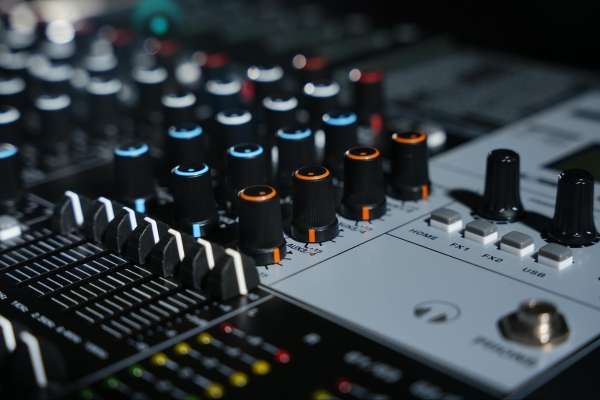
If attendees cannot hear the program, almost everything else becomes irrelevant.
Corporate audio should be designed around the room, seating configuration, stage, and program.
Main Speaker System
Depending on the event, the audio system may include:
- Main speakers
- Subwoofers where appropriate
- Delay speakers for long rooms
- Stage monitors
- Digital audio console
- Properly positioned speaker coverage
The goal is not simply making the room loud.
The goal is consistent coverage so the audience near the stage is not overwhelmed while people in the back struggle to understand the presenter.
Microphones
Potential microphone needs include:
- Wireless handheld microphones
- Lavalier microphones
- Headset microphones
- Podium microphones
- Audience Q&A microphones
- Panel microphones
- Wired backup microphone
Count microphones based on the busiest point in the program.
If a six-person panel needs everyone available to speak at once, planning around one or two shared microphones creates an unnecessary problem.
The same applies to audience Q&A. Decide beforehand whether questions will come through a roaming handheld, a fixed microphone location, or another system.
Laptop and Video Audio
Not all event audio comes from microphones.
Your production team should also account for:
- Presentation audio
- Embedded videos
- Walk-up music
- Award stings
- Playback tracks
- Remote callers
- Recorded voiceovers
Every source should have a tested path into the audio system.
Finding out during the presentation that a video looks perfect but has no sound is exactly the type of problem a proper AV check should eliminate.
Corporate Event Video Checklist
4. Make Sure Everyone Can Actually See the Content
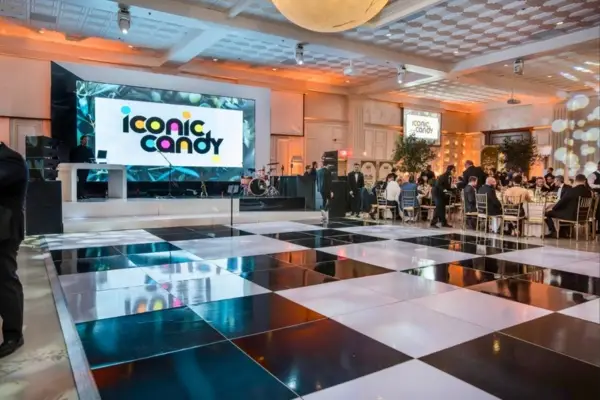
A screen can technically be working and still be wrong for the event.
Display size, brightness, placement, content, and viewing distance all affect whether attendees can actually use what is on screen.
Determine the Right Display Type
Corporate events may use:
- LED video walls
- Projection screens
- Flat-panel displays
- Confidence monitors
- Stage monitors
The right choice depends on the room and content.
Projection can work well in certain controlled environments. Flat panels may make sense for breakout rooms or smaller spaces. Larger corporate events may benefit from LED displays where brightness, scale, custom layouts, branding, and visibility are important.
For conferences, product launches, galas, and branded stages, our LED video wall rentals can be integrated with the stage and production rather than treated as a separate screen placed in the room.
Size the Display for the Room
Consider:
- Screen dimensions
- Distance to the furthest attendee
- Smallest text appearing on slides
- Stage width
- Room proportions
- Content aspect ratio
Do not judge the screen from the production table or front row.
Stand where the furthest attendee will sit and look at the actual presentation.
If the numbers on a financial slide or labels on a chart cannot be read from there, the display may be too small regardless of what the equipment specifications say.
Decide What Will Appear on Screen
Content may include:
- Slides
- Company logos
- Videos
- Speaker names
- Lower thirds
- Sponsor graphics
- Live cameras
- Remote presenters
- Countdown timers
- Award graphics
- Social content
Knowing every expected source helps determine the video switching and playback system before show day.
5. Decide Whether You Need IMAG or Cameras
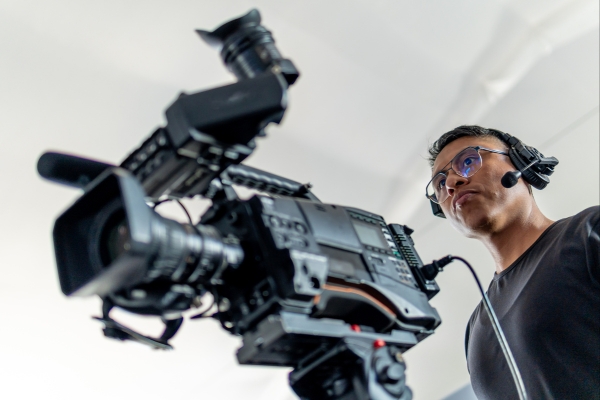
IMAG stands for image magnification. In simple terms, live cameras capture what is happening on stage and display that feed on the event screens.
It becomes especially useful when:
- The room is large
- Attendees are seated far from the stage
- Panels include several speakers
- Executive visibility is important
- Demonstrations need to be seen up close
- The event will be recorded
- The program will be streamed
A camera system may require:
- Cameras
- Camera operators
- Video switcher
- Planned camera positions
- Proper stage lighting
- Screen placement
- Recording system
- Streaming equipment where needed
If cameras are being used, they should be considered during the stage and lighting design.
A stage that looks fine to the eye can look completely different through a camera.
Presentation AV Checklist
6. Prepare Every Presentation Before Show Day
Corporate presentations introduce one of the most common sources of last-minute AV problems.
A speaker arriving five minutes before their session with an unfamiliar laptop, embedded video, unusual font, and revised slide deck creates unnecessary risk.
Collect Presentation Files Early
Request relevant materials ahead of time, including:
- PowerPoint files
- Keynote files
- Videos
- Special fonts
- Logos
- Speaker names
- Lower-third information
- Remote presentation requirements
That gives the production team time to check formatting, playback, aspect ratio, embedded media, and other technical issues.
Check Laptop Connections
Prepare for the connections being used.
That may include:
- HDMI
- USB-C
- Necessary adapters
- Dedicated playback computer
- Backup computer
Do not assume every presenter will arrive with the right adapter.
Use a Dedicated Presentation Computer
For more involved corporate programs, it is generally cleaner to run approved presentations through a dedicated production computer.
That gives the operator control over playback and reduces the number of unknown devices being connected to the system during a live show.
Last-minute edits can still happen, but they can be transferred into the controlled presentation environment rather than repeatedly changing the entire signal path.
Provide a Confidence Monitor
A confidence monitor faces the presenter so they can see their current slide without constantly turning their back to the audience.
Depending on the setup, it can also display upcoming slides, speaker notes, or timing information.
Prepare Slide Clickers
Have:
- Primary presentation clicker
- Spare batteries
- Backup clicker
Small details matter when an executive is already standing under the lights waiting for the next slide.
Corporate Event Lighting Checklist
7. Light the People, Not Just the Room
Corporate event lighting has two separate jobs.
One is making the room look good.
The other is making sure the people on stage can actually be seen.
Stage Lighting
Presenters should be clearly visible:
- To the audience
- On IMAG screens
- On cameras
- In event recordings
- During live streams
Uplighting around the ballroom does not replace proper stage lighting.
A beautiful blue wall behind the presenter does not help if their face is dark.
Lighting should account for where people will stand, how they will move, and how cameras will see the stage.
Room and Brand Lighting
The surrounding room may incorporate:
- Uplighting
- Company colors
- Architectural lighting
- Scenic lighting
- Table lighting
- Accent lighting
This is where AV can also support the event’s visual identity.
Program Different Lighting Looks
The room does not need to look identical throughout the entire event.
Lighting can change between:
Presentation → Awards → Dinner → Entertainment → Networking
A clean stage look may be appropriate during a keynote. The room can become warmer during dinner and more energetic once entertainment begins.
Those transitions help the event visually move from one part of the program to another.
Stage and Scenic Checklist
8. Build the Stage Around the Program
Do not choose a stage size without considering what will actually happen on it.
Review:
- Stage dimensions
- Stage height
- Stairs
- Railings where required
- Podium
- Presenter positions
- Panel seating
- Confidence monitors
- LED wall placement
- Branding
- Stage fascia
- Scenic elements
A single presenter at a podium needs very little stage depth.
A six-person panel, live demonstration, award presentation, or product reveal may require significantly more working space.
The stage, video, lighting, and scenic elements should be designed together rather than chosen independently.
Check Sightlines
Walk the room and ask whether guests can clearly see the:
- Presenter
- Screen
- Panelists
- Awards
- Product
- Demonstration
Check from the sides and back, not just center front.
Seating layouts, columns, cameras, speakers, décor, and even the stage itself can create blocked views if sightlines are not considered early.
Power, Cabling and Safety Checklist
9. Plan How Everything Will Be Powered
A corporate production may have multiple systems drawing power simultaneously.
Account for:
- Audio circuits
- Video circuits
- Lighting circuits
- LED wall power
- Production computers
- Networking equipment
- Stage equipment
- Backup power where appropriate
Larger productions may require power distribution that separates systems and safely manages the electrical load.
This should be planned with the venue and production team ahead of installation.
Manage Cables Properly
Production involves cables. Guests should not have to think about them.
Depending on the layout, use:
- Cable ramps
- Gaffer tape where appropriate
- Organized backstage cable runs
- Protected guest walkways
Cable management matters for safety, reliability, and appearance.
A ballroom full of exposed cords running between equipment is not a finished production.
Internet and Hybrid Event Checklist
10. Confirm Internet Requirements
Internet becomes production infrastructure when the event depends on it.
That may include:
- Live streaming
- Remote speakers
- Video conferencing
- Cloud presentations
- Audience polling
- Event apps
- Remote production tools
Confirm:
- Wired internet availability
- Upload speed
- Download speed
- Dedicated network options
- Backup connection
- Venue IT contact
Do not assume the venue’s guest Wi-Fi can support the production because attendees can browse the internet on their phones.
A reliable connection for a live remote executive or event stream may need to be treated very differently from general guest access.
Production Staffing Checklist
11. Decide Who Is Actually Running Everything
Equipment does not run the show by itself.
Depending on the production, the crew may include:
- Audio engineer
- Video operator
- Presentation operator
- Lighting operator
- Camera operators
- Stage manager
- Show caller
- Production manager
Not every corporate event requires every position.
The important part is assigning responsibility before show day.
The employee responsible for organizing the company meeting should not also be standing behind a laptop advancing slides, troubleshooting a wireless microphone, cueing a video, and telling the next presenter when to walk on stage.
As the program becomes more complicated, dedicated production roles become increasingly important.
Backup AV Checklist
12. Plan for Equipment Failure Before It Happens
Technology can fail.
The production plan should account for that before an audience is in the room.
Depending on the event, backup equipment may include:
- Backup microphone
- Spare batteries
- Extra cables
- Extra adapters
- Backup presentation computer
- Backup presentation files
- Spare clicker
- Additional power supplies
- Backup playback files
- Redundant critical systems
The most important equipment should not have a single point of failure that can stop the entire show.
Professional production is not assuming nothing will fail.
It is making sure the audience never knows when something does.
Rehearsal Checklist
13. Run a Technical Rehearsal
Do not wait until guests are taking their seats to discover whether everything works together.
Before doors open, test:
- Every microphone
- Presenters
- Presentations
- Videos
- Walk-up music
- Lighting cues
- Award graphics
- Remote speakers
- Camera shots
- Confidence monitors
- Slide clickers
- Stage entrances
Testing individual pieces of equipment is not the same as testing the show.
The goal is to confirm how one element transitions into the next.
Consider a Cue-to-Cue Rehearsal
Not every presenter needs to deliver their entire speech during rehearsal.
For many events, it is more useful to rehearse the transitions.
For example:
Speaker entrance → presentation → video → panel → awards → entertainment
This is often where timing problems appear.
A cue-to-cue rehearsal allows audio, video, lighting, stage management, and presenters to work through those transitions without sitting through the full content of every session.
Event-Day AV Checklist
14. Complete Final Checks Before Doors Open
Before attendees enter the space, confirm:
- System is powered and stable
- Microphones have been tested
- Fresh batteries are installed
- Speaker system has been sound-checked
- Presentations are loaded
- Videos have been tested
- Screens are active
- Cameras are framed
- Lighting looks are programmed
- Internet is confirmed
- Backup equipment is accessible
- Presenters have checked in
- Crew has the current run of show
This is the final opportunity to catch something while the room is still empty.
Confirm the Final Run of Show
Everyone should be working from the same current schedule.
That may include:
- Production team
- Speakers
- MC
- Venue
- Client
- Stage manager
- Entertainment
If the keynote was moved ten minutes earlier, every department that depends on that timing needs to know.
Post-Event AV Checklist
15. Finish the Production Properly
The technical work does not necessarily end when the final speaker leaves the stage.
After the event:
- Save required recordings
- Transfer approved files
- Archive presentations where appropriate
- Secure or delete sensitive content
- Break down equipment
- Confirm rentals and inventory
- Review technical issues
- Document improvements for future events
For recurring conferences and annual meetings, the post-event review can make the next production significantly easier.
If a microphone position did not work, the screen needed to be larger, or a presenter workflow created unnecessary delays, document it while the information is still fresh.
Plan Your Corporate AV Before Event Day
A corporate AV checklist is not about renting as much equipment as possible.
It is about making sure the right technology, people, content, and infrastructure are in place for the event you are actually producing.
Sound should be clear. Screens should be readable. Presenters should know where to go. Videos should play when expected. Lighting should support the stage. The production team should understand the run of show. And the backup plan should already exist before anything goes wrong.
One Of A Kind Events provides corporate AV production services in New Jersey with audio, staging, LED video walls, lighting, scenic fabrication, presentation support, and complete event production. If you are planning a corporate meeting, conference, gala, launch, or other live event, our team can build and run the production from load-in through the final cue.